What views are
A view is a saved setting of an organizer Grid. It does not replace the Grid you know – it only adjusts it to your needs: which columns are shown and in what order, how the Grid is sorted and which filters are set. For example, you can keep one view with active projects only and another one with all columns.
You will find views in the Grid view, next to the Views button at the top left above the Grid. Do not confuse views with the organizer views (Dashboard, List, Kanban, Grid, Calendar) that you switch between at the top right.
What you need
Access to the organizer and the Grid view. The views you save appear in the My views menu. Views are personal: only you can see them and they do not appear to other users of the organizer.
How to create your own view
- Open the organizer and click Grid at the top right.
- Adjust the Grid to your liking. You turn columns on and off in the menu with the eye icon at the top right above the Grid: tick the columns you want to see, drag the handle to change their order and click Apply. You can sort the Grid by clicking a column heading and set filters under the column headings.
- Click Views and choose Save view.
- Enter a name for the view and click Save. The message “View saved” appears and the name of the view replaces the Views label.
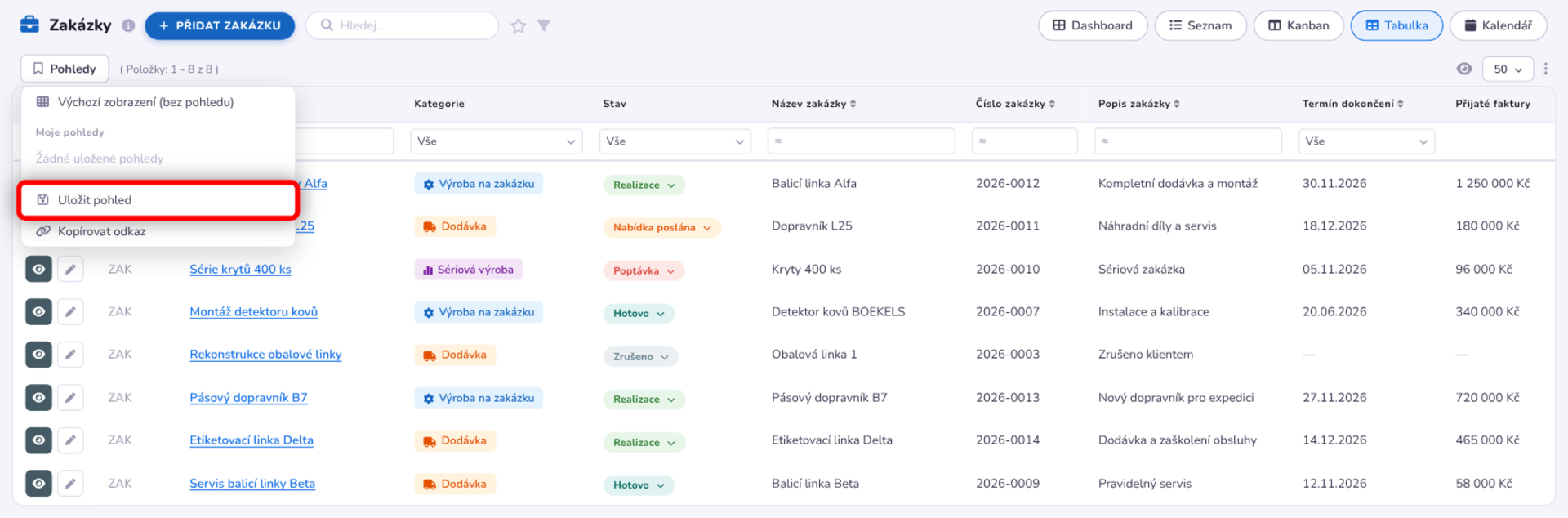
A view remembers hidden and shown columns, their order, sorting and the filters you set.
Switching between views
Click Views and choose a view in the My views menu. The Grid switches to the saved setting. With Default view (no saved view) you return to the original organizer Grid with all columns and no filters.
You can set the view you use most often as the default with Set as default. The Grid will then open in that view.
Editing, renaming and deleting a view
When a view is open, the Views menu offers these options:
- Overwrite with current state – saves the changes you made in the Grid to the view (the option is active only when the Grid differs from the saved view).
- Rename – changes the name of the view.
- Delete – deletes the view after confirmation. The items of the organizer are not changed in any way.
- Copy link – copies a link to the Grid. [verify: whether the link opens the Grid with the same settings for a colleague and what permissions the colleague has]
Views and filters in the Grid
The filters you set in the Grid are saved together with the view. How filters work is described in the article How to filter in the organizer Grid.
Tips
Create a separate view for each activity you repeat in the organizer – for example an overview of items with an approaching deadline or a shortened Grid view with only the most important columns.