When to filter in the Grid
The Grid view shows the items of an organizer in rows and their details in columns. A filter under the column heading narrows the Grid down to the items you need right now – for example projects with a given name or items due this month.
What you need
Access to the organizer and the Grid view turned on. You can switch between views (Dashboard, List, Kanban, Grid, Calendar) at the top right above the organizer.
How to filter in the Grid
- Open the organizer and click Grid at the top right.
- Find the filter field under the column name. Depending on the column type it is a text field or a selection (see below).
- Enter a value or select options. A text filter is applied as you type; for a selection or a date, confirm with Apply.
- The Grid shows only the matching items. An active filter is highlighted in yellow and the number of displayed items appears at the top left next to the Views button (for example “Items: 1 – 5 of 5”).
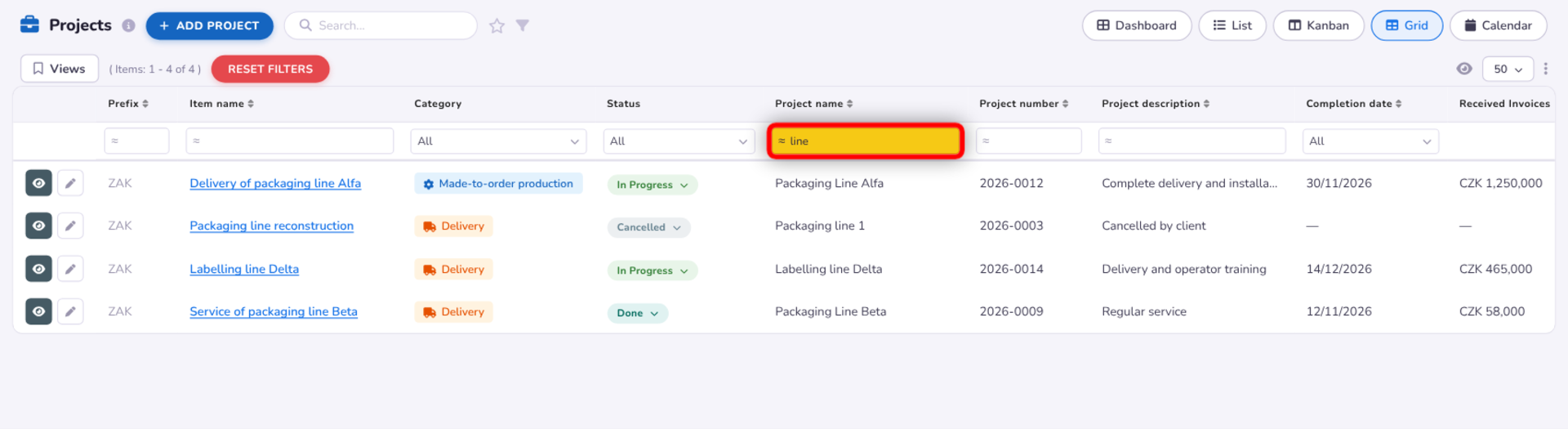
Filter types by column
- Text (e.g. Project name): shows items that contain the entered text. The text is not case-sensitive.
- Selection (e.g. Category): tick one or more values. The switch lets you choose whether the item “is one of” the selected values or “is none of” them. You will also find the option Not filled in.
- Date (e.g. Completion date): use a quick option – today, this week, this month, last month, this year or already past. For more precise settings choose from the menu: exactly, from, to, between, older than, older than or equal to, newer than, newer than or equal to, period, anniversary, not filled in or filled in.
[verify: filters for numeric columns, yes/no columns and columns linking to another item (Customer, Contract)]

Filtering by several columns
You can set a filter in several columns at once. The Grid shows only items that meet all the conditions at the same time. If no item meets them, you will see the message “No items found” with a link to clear the filters.
Clearing a filter
You can clear one filter with the cross in the filter field or the cross next to the column name. For a selection or a date you can use the Clear link. To clear all filters at once, use the red Reset filters button next to the number of items.
How it differs from filtering in the List view
A filter applies only to the Grid view. When you switch to the List view, the filter does not carry over and you see all items. When you return to the Grid, your filter is still set.
Tips
You can save your filter settings in a view and come back to them at any time, see How to customize an organizer Grid with views. Columns with arrows in the heading can also be sorted, see How to sort items.
Troubleshooting
The Grid is empty or shows fewer items than you expect. Check whether a filter is set in another column (a yellow highlighted field). Click Reset filters and start again.