How to Set up Multi-Factor Authentication (MFA) as a User
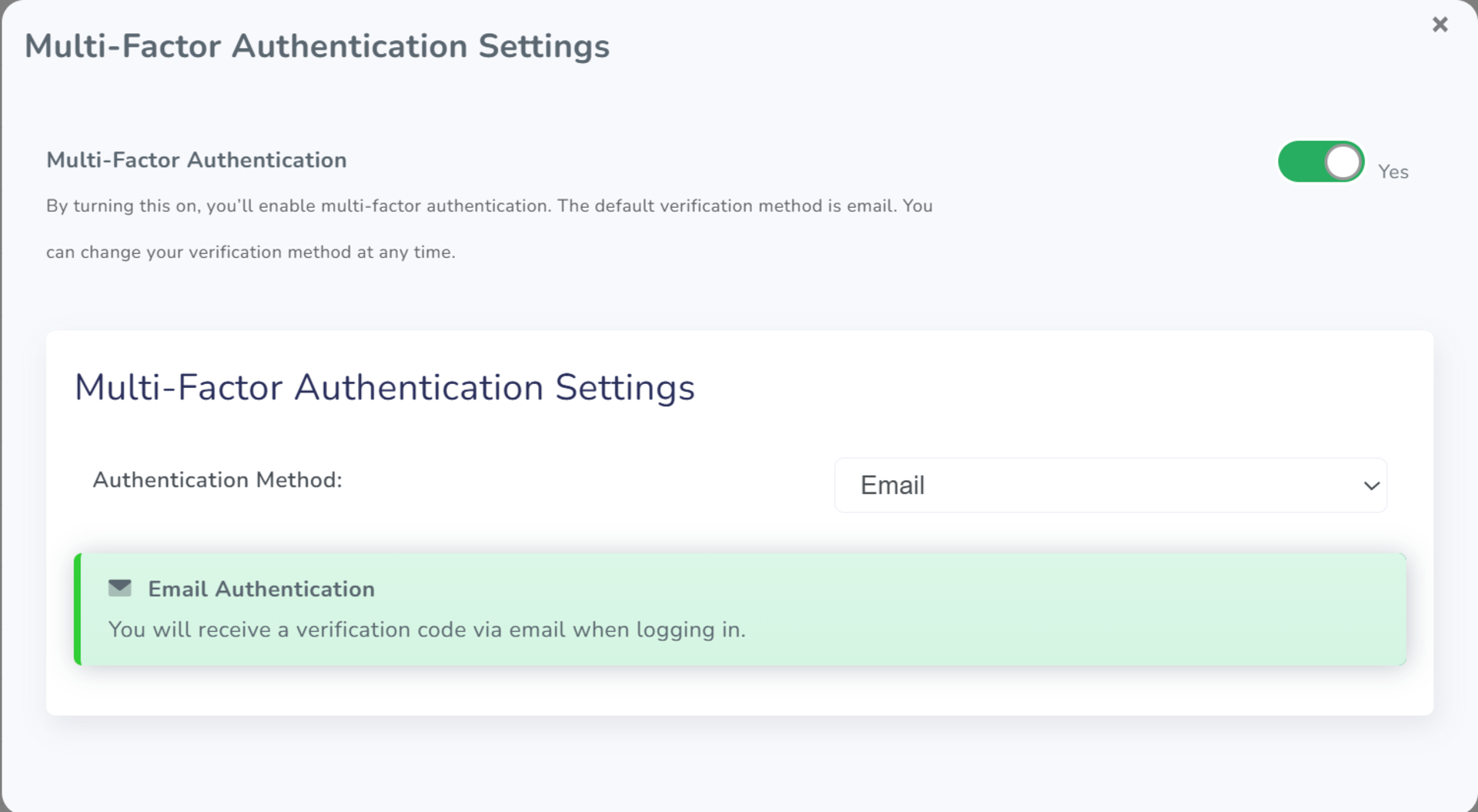
To improve your account security, you can turn on multi-factor authentication (MFA) for your user account. The steps below outline the basic setup for MFA using email verification. If you’d rather use an authenticator app, see the instructions here.
How to Enable Multi-Factor Authentication as a Manager
- Open the left sidebar by clicking the arrow above your profile picture
- Click the gear (settings) icon
- Select "User Security Settings" from the menu
- Click the "MFA Settings" button
- Enter your account password
- Turn on multi-factor authentication options
How to Enable Multi-Factor Authentication as an Employee
- Click the gear icon in the top-right corner
- Select "User Security settings" from the menu
- Click the "MFA settings" button
- Enter your account password
- Turn on multi-factor authentication options
How to Change Your Password as an External User
- Click the user icon in the top-right corner
- Select "User Security Settings" from the menu
- Click the "MFA Settings" button
- Enter your account password
- Enable multi-factor authentication options