Aptien CRM supports a tailored workflow for each salesperson across deals, opportunities, and projects. Sales team members can only access the deals, projects, and tasks they’re assigned to.
- Salespeople have access only to their assigned projects, deals, opportunities, and tasks.
- This ensures they can view and update information related to their assigned leads and opportunities only.
- Access is restricted to their own work—no visibility into unassigned projects.
- Sales managers have full visibility into all deals and opportunities.
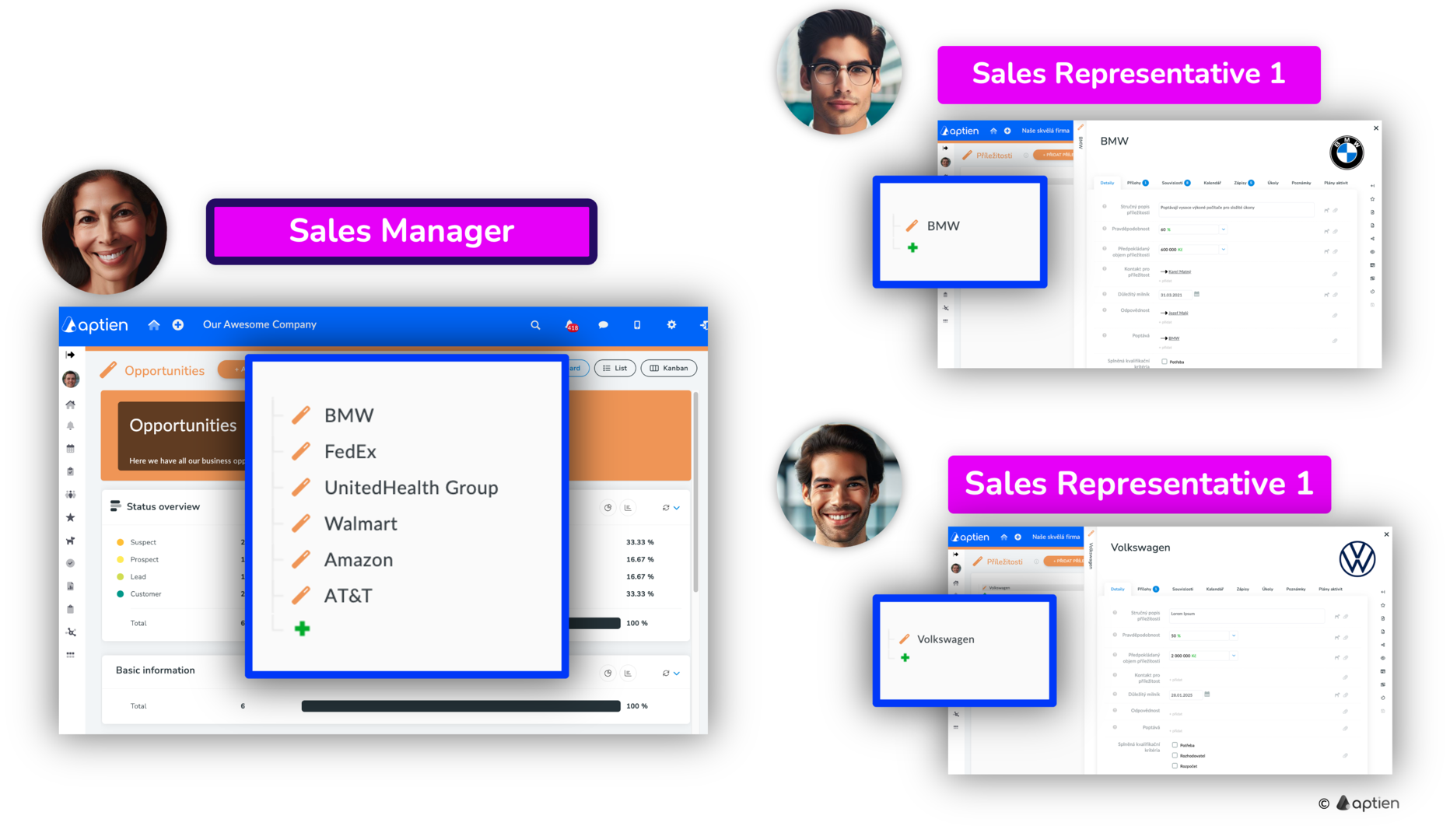
Which Projects or Cases a Sales Representative Can See
- Clarify visibility rules in plain US business terms.
- Standardize role names and examples for SMB contexts.
- Simplify wording and remove redundancies.
- Emphasize individual vs. team visibility behavior.
- Keep guidance actionable with clear role setup tips.
Sales reps can only see the deals, opportunities, or cases that:
- They create themselves.
- Are assigned to them by a sales manager with the right permissions.
- Put simply, a sales rep won’t see any records until they’re assigned to them or created by them.
Recommendations and Tips
- For a role like "Sales Representative — Midwest Region," configure it so the rep only sees the deals they create.
- If you assign the same role to multiple reps, everyone with that role will see the same items. It works like a team role. For example, all reps with the role "Sales Representative — Central Region."
- If you want each user to see only their own items, create a separate individual role for each person, such as "Sales Representative — John Doe," and assign it only to that user.
- Need help tailoring roles or permissions for your team? Let us know.
How to Set Individual Permissions for Sales Reps
Requirements for Setting the Sales Rep Role
- The Sales Rep role should have limited access to all deals.
- You must be signed in as a Sales Manager with the correct permissions (with the "Authorize" level).
Step-by-Step: Share a Specific Deal
If you want to manually assign specific deals to sales reps, follow these steps:
- Go to the Opportunities workspace.
- Select the deal (opportunity) you want to assign to or remove from the sales rep.
- In the right-hand menu, select Permissions.
- Add or remove the sales rep in the permissions settings.
- Save your changes.