This article is for office, asset or facility managers or other people responsible for assets and work equipment.
If you need quickly locate an asset within the facility tagged by a barcode or QR code, use our mobile web app and effortlessly scan the code with any smarphone smartphone. The app instantly retrieves and displays the asset's record and its details, such as location, status, and history.
- QR or barcode code could be from an ERP system or other inventory tags, or
- QR ode can be generated by Aptien
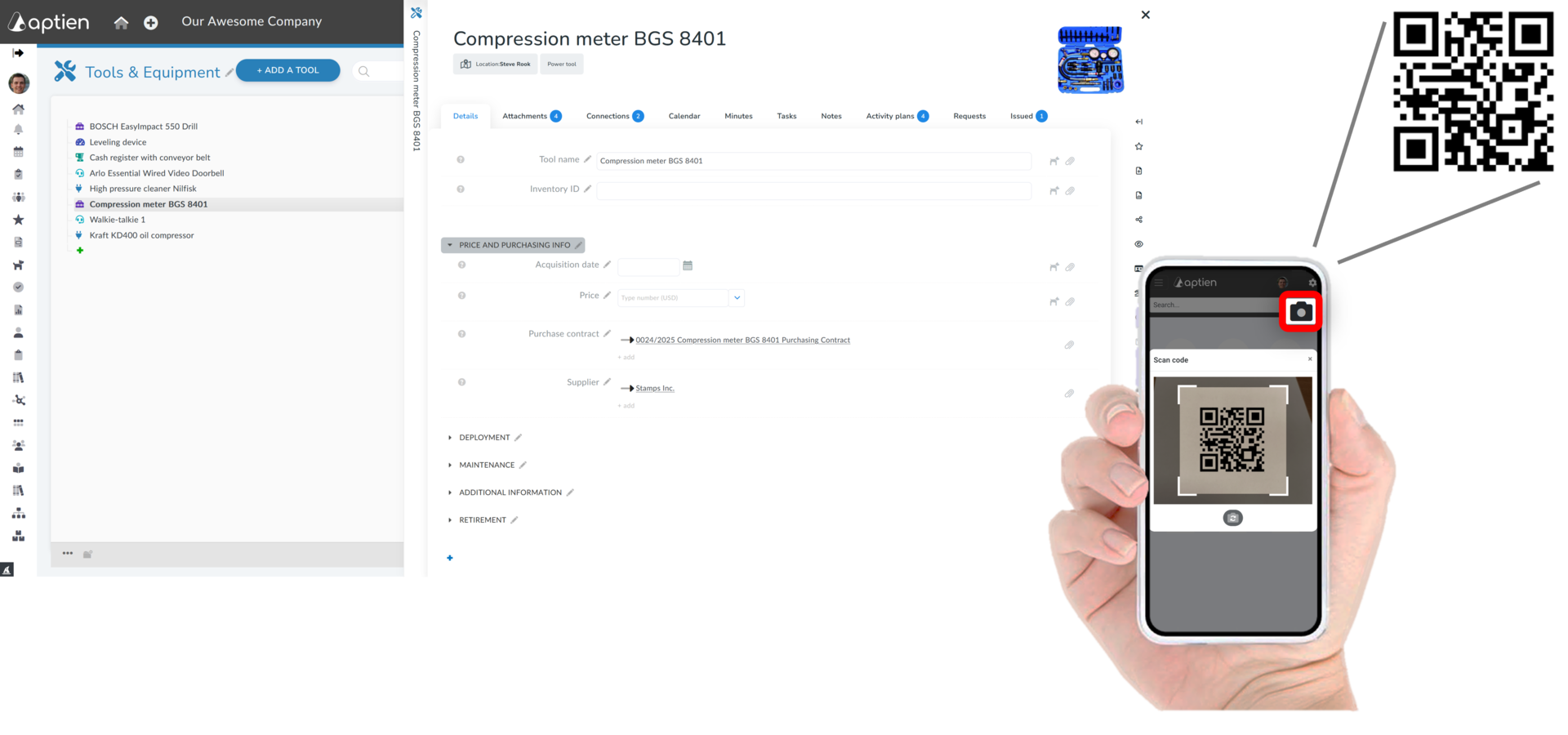
No dependence on expensive scanner
- Use any smartphone with integrated camera
Step-by-Step Procedure How to Scan and Find Assets
- Open the Mobile Web App
- Launch the app on your mobile device and log in with your credentials.
- Navigate to the Scan Feature
- Tap on the "Scan" button located on the main dashboard or menu. The camera viewfinder will open automatically.
- Position the Camera Over the Code
- Hold your device steady and align the barcode or QR code within the frame. Ensure the code is clear and well-lit.
- Scan the Code The app will automatically scan the code and retrieve the asset information.
- View and Manage Asset Details
- If you make any updates, be sure to save the changes before exiting.
Tips for Effective Asset Scanning
- Ensure the barcode or QR code is not damaged or obscured.
- Hold the device steady and at an appropriate distance from the code.
- Use good lighting to improve scan accuracy.
This guide should help your clients easily find and manage their assets using your mobile web app.