Form Structure
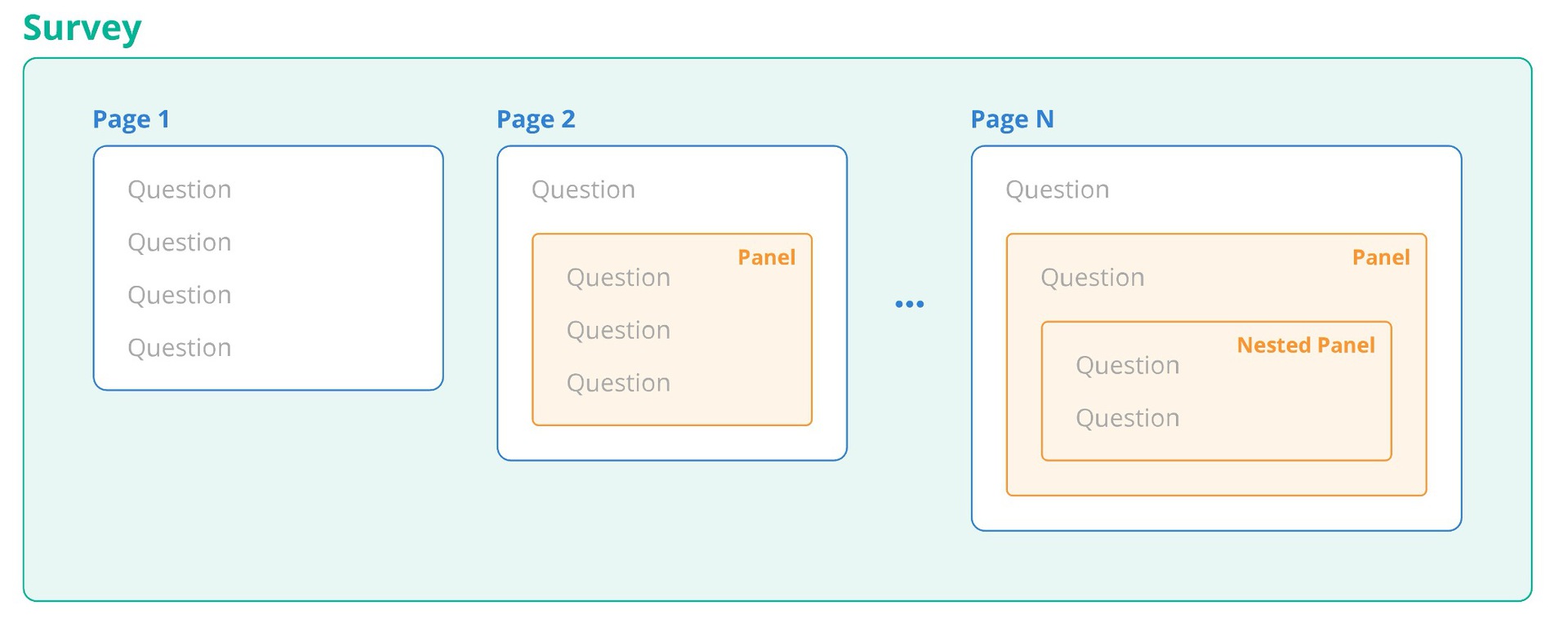
Aptien online forms make it easy to create surveys, polls, and quizzes without any coding—you simply point and click. They’re ideal for employee surveys, inspection checklists, event registrations, and customer feedback. An intuitive drag-and-drop editor lets you design and update forms in minutes. Forms are organized into pages, sections, and individual questions.
- Each form can include one or more pages.
- Each page contains sections and questions.
- Sections group related questions and help manage them together.
- You can also add questions directly without using pages or sections.
Adding Questions to a Form
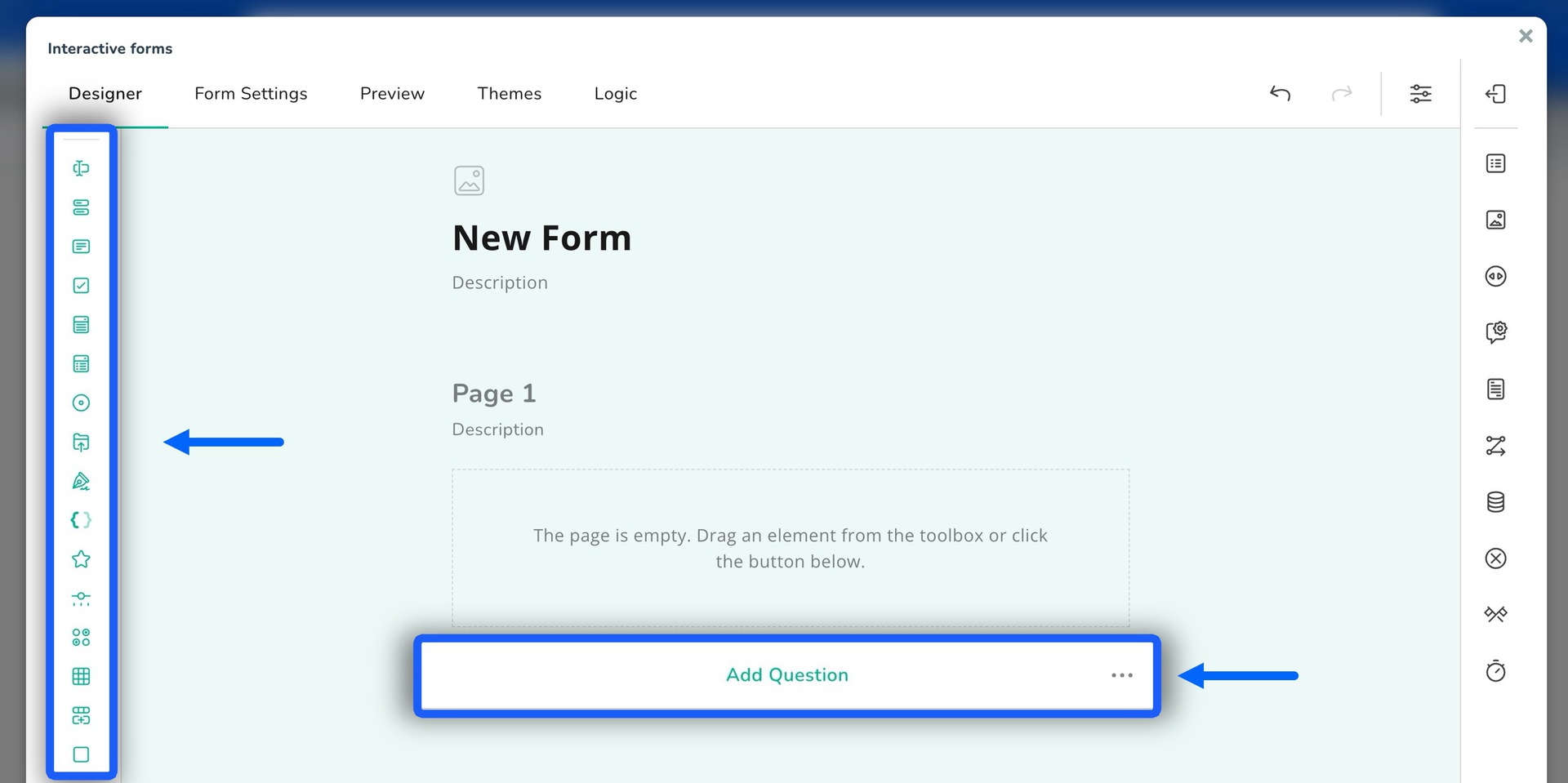
Forms can include any question type supported by the Aptien Form Library, which offers a range of ready-made fields, options, and widgets that you can easily add using drag and drop.
Adding Form Questions
Forms can include any question type supported by the Aptien Form Library, which offers a variety of prebuilt fields, options, and widgets that you can drag and drop into your form.
Types of Form Questions
- Short answer
- Multiple text fields
- Comment
- Checkbox
- Dropdown list
- Multiple choice (select many)
- Single choice (radio buttons)
- File or image upload
- Signature
- Detail value
- Rating
- Scale (slider)
- Grid (single choice per row)
- Grid (multiple choice per row)
- Grid (dynamic rows)
- Panel/Section
- Panel/Section (dynamic)
- Image picker
- Image
- Expression (read-only)
Where the form will be offered
In the form settings, choose where the form appears and how responses are saved.
- The form will be available for all items
- The form will be available for a single selected item
Form Appearance Settings
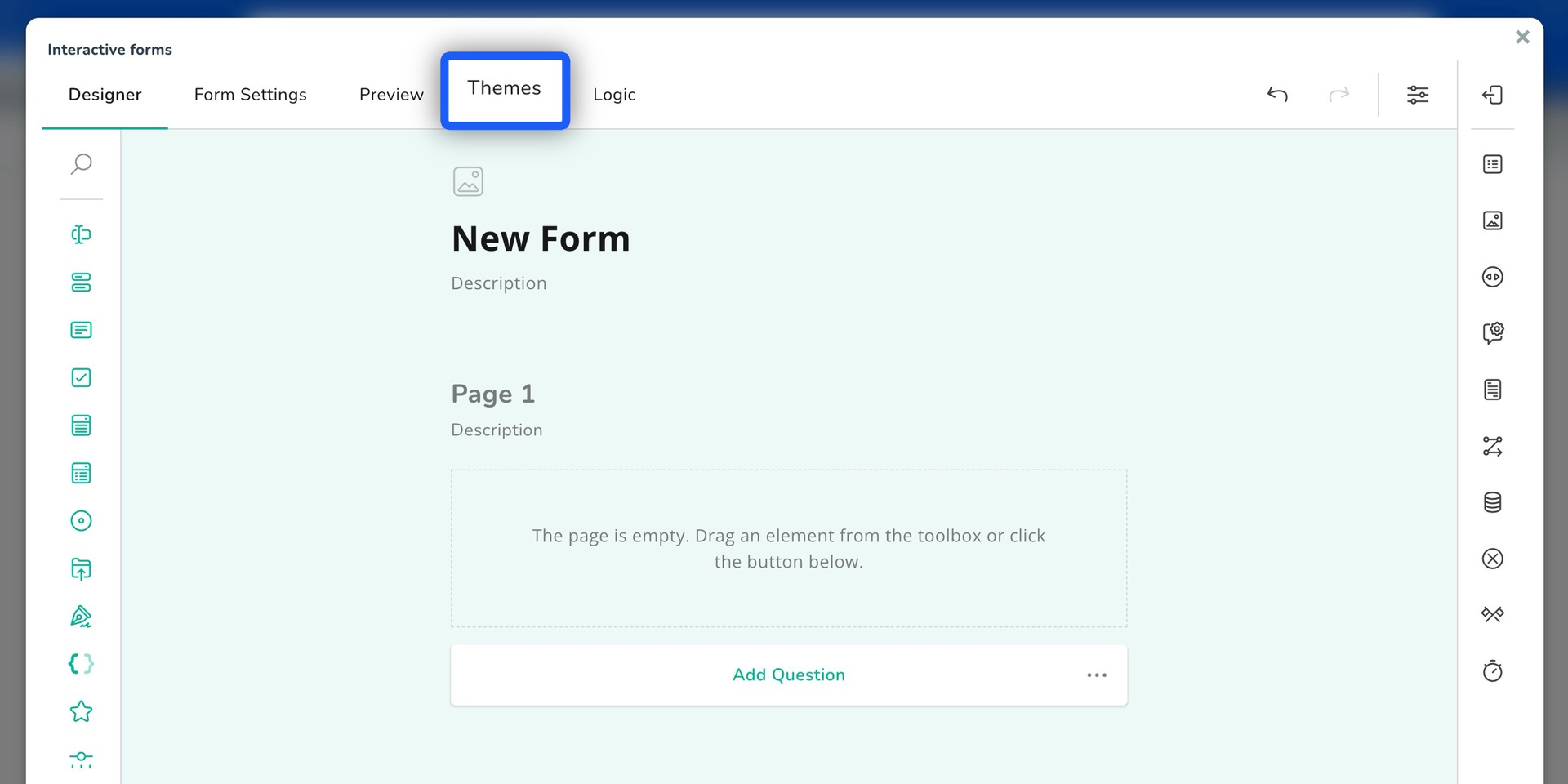
In the right sidebar, you can customize the look and feel of your form:
- Select the form theme and primary color
- Choose the form layout
- Set the font family and typography
- Configure colors and visibility rules for individual questions
- Pick a background for the form
- Adjust additional color and display options
Display Rules and Visibility Logic
Conditional visibility controls whether a field, choice option, section, or an entire form page is shown to the user based on set conditions. For example, in a checkout form, extra shipping address fields appear only if the customer selects a shipping address different from the billing address.
Setting visibility logic for individual questions
- You can set display conditions for each question separately.
- Configuration options are available in the right-hand sidebar.
Setting visibility logic for an entire page
- Page display logic lets you dynamically control whether a page is visible and whether it’s read-only, based on predefined conditions that use user input.
- In the Conditions section, use Make the page visible if (to show or hide the page) or Disable the read-only mode if (to allow or restrict page editing).
Setting Up Branching Logic and Question Conditions
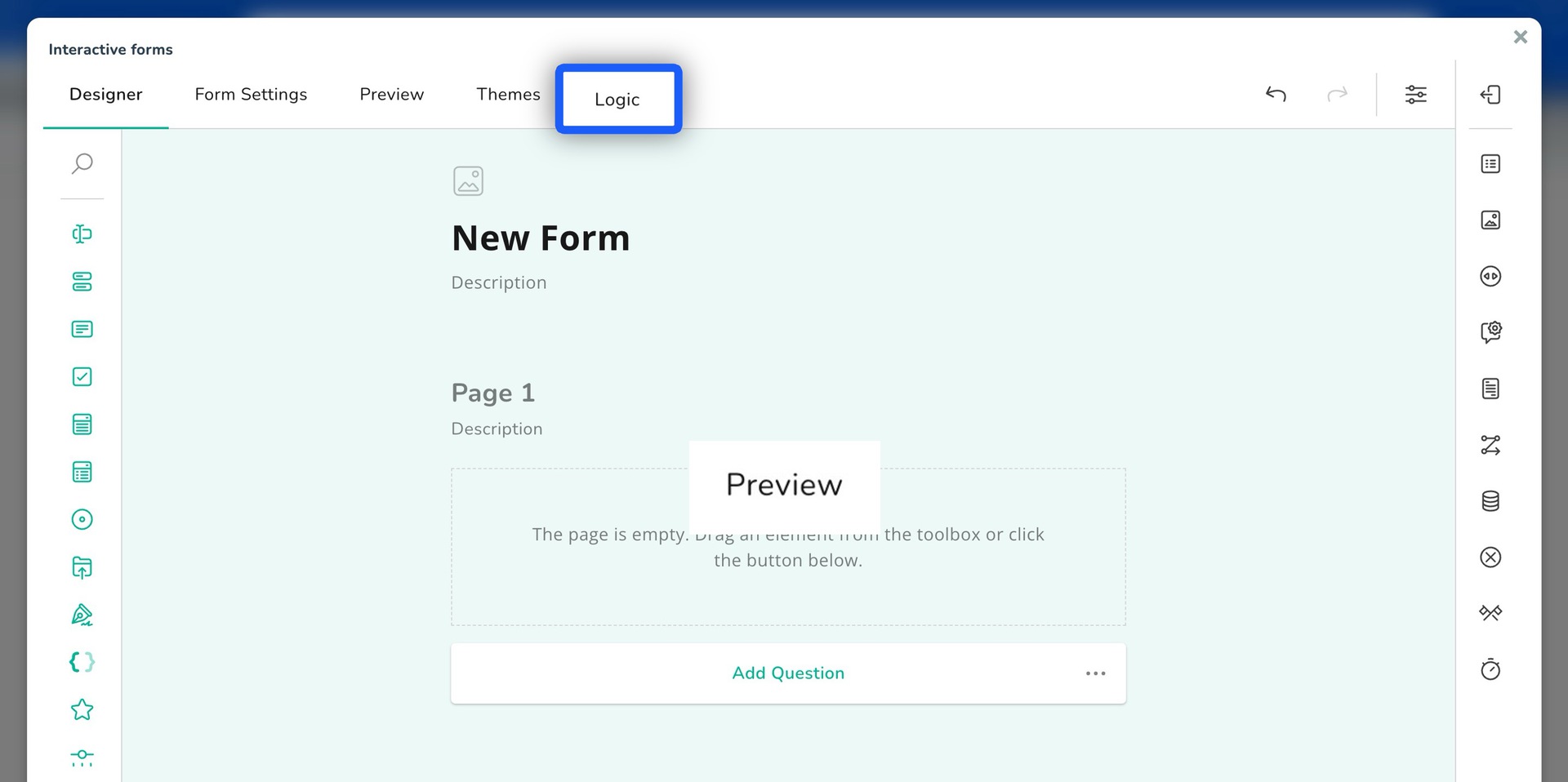
Branching logic—also called conditional logic or form branching—lets you guide people through different paths based on their answers to earlier questions. With branching logic, your form can automatically skip irrelevant questions, show or hide sections, or send someone straight to the completion page. This makes your form feel personalized, reduces confusion, and improves completion rates and data quality.
For example, in a customer satisfaction survey for a software product: if someone says they’re satisfied with performance, you can show a follow-up asking for additional comments. If they’re dissatisfied, you can skip that follow-up and instead ask which areas need improvement.
Types of Branching Logic
- Skip Logic: automatically routes respondents past irrelevant questions based on earlier answers using simple rules. For example, if someone doesn’t own a car, skip logic bypasses all car-related questions and goes to the next relevant section.
- Show/Hide Logic: dynamically shows or hides specific questions based on conditions. For example, if someone selects “Yes” to owning a pet, pet-related questions appear; if they select “No,” those questions stay hidden.
- Complete Survey: ends the survey and sends respondents to the “Thank You” page when a trigger condition is met. For example, if someone answers “No” to having a certain issue, you can end the survey because follow-up questions aren’t relevant.